Local storage
Articles are stored in a SQLite database on your machine, so downloaded content remains available offline.

rxs reads RSS, Atom, and JSON feeds. It stores articles in a local SQLite database, refreshes subscriptions on launch, and can be used entirely from the keyboard.
$ /bin/sh -c "$(curl -fsSL https://rxs.sh/install.sh)"
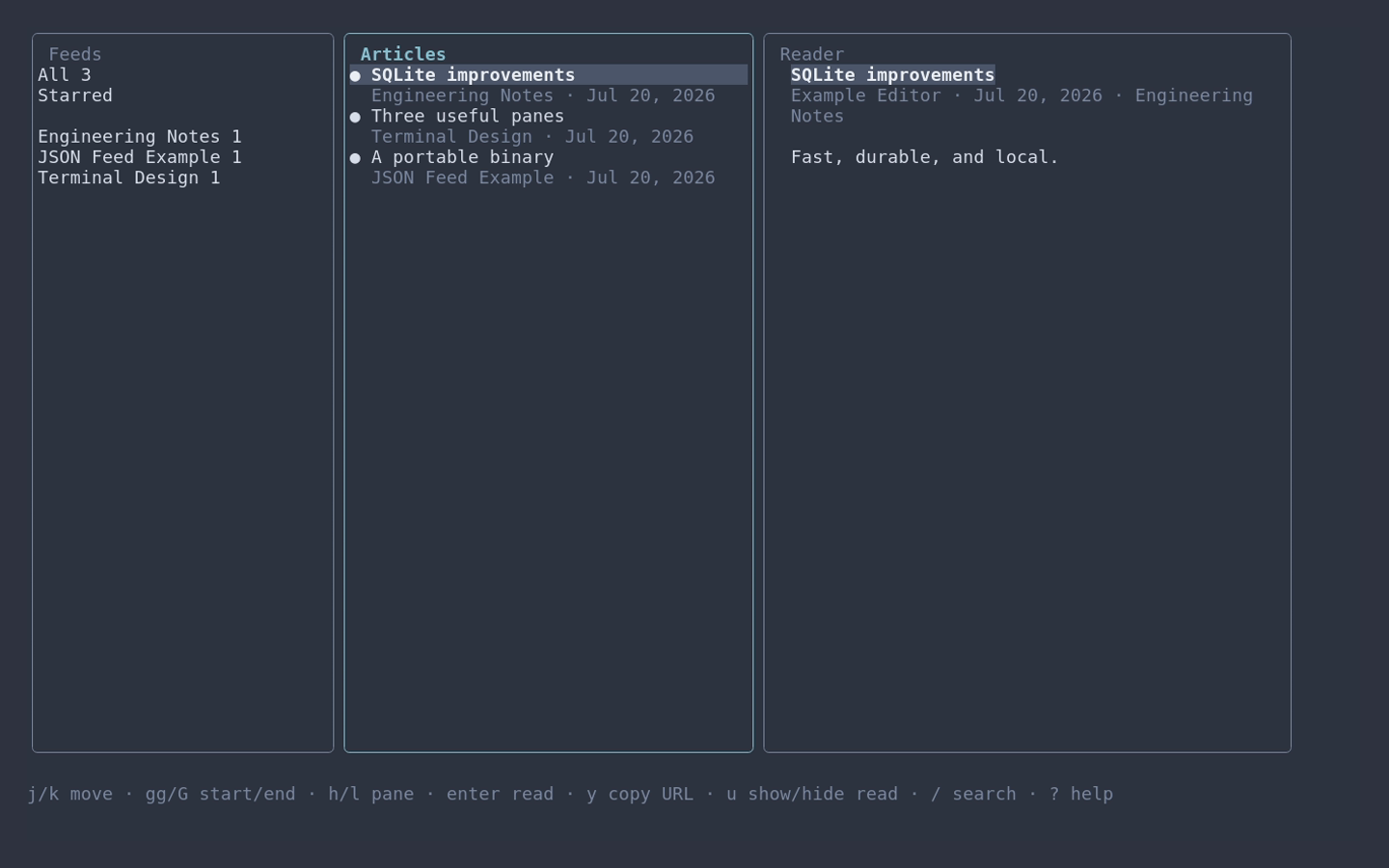
If you already spend time in a terminal, a terminal-first reader is worth exploring: it keeps navigation on the keyboard, works over SSH, and stores its data on your machine. rxs is one way to try that workflow.
View the source and docs ↗Articles are stored in a SQLite database on your machine, so downloaded content remains available offline.
Navigate, search, star, refresh, and read without switching to a mouse.
Import and export subscriptions as OPML. rxs does not require an account or a hosted service.
rxs is a single command-line program. Install the binary, give it a feed URL, and open the reader.
Download and verify the latest rxs release.
Add a feed URL from the command line or from inside the reader.
Open the interface to browse feeds and read downloaded articles.
Filter subscriptions, choose an article, and move into the full-width reader without leaving the keyboard.
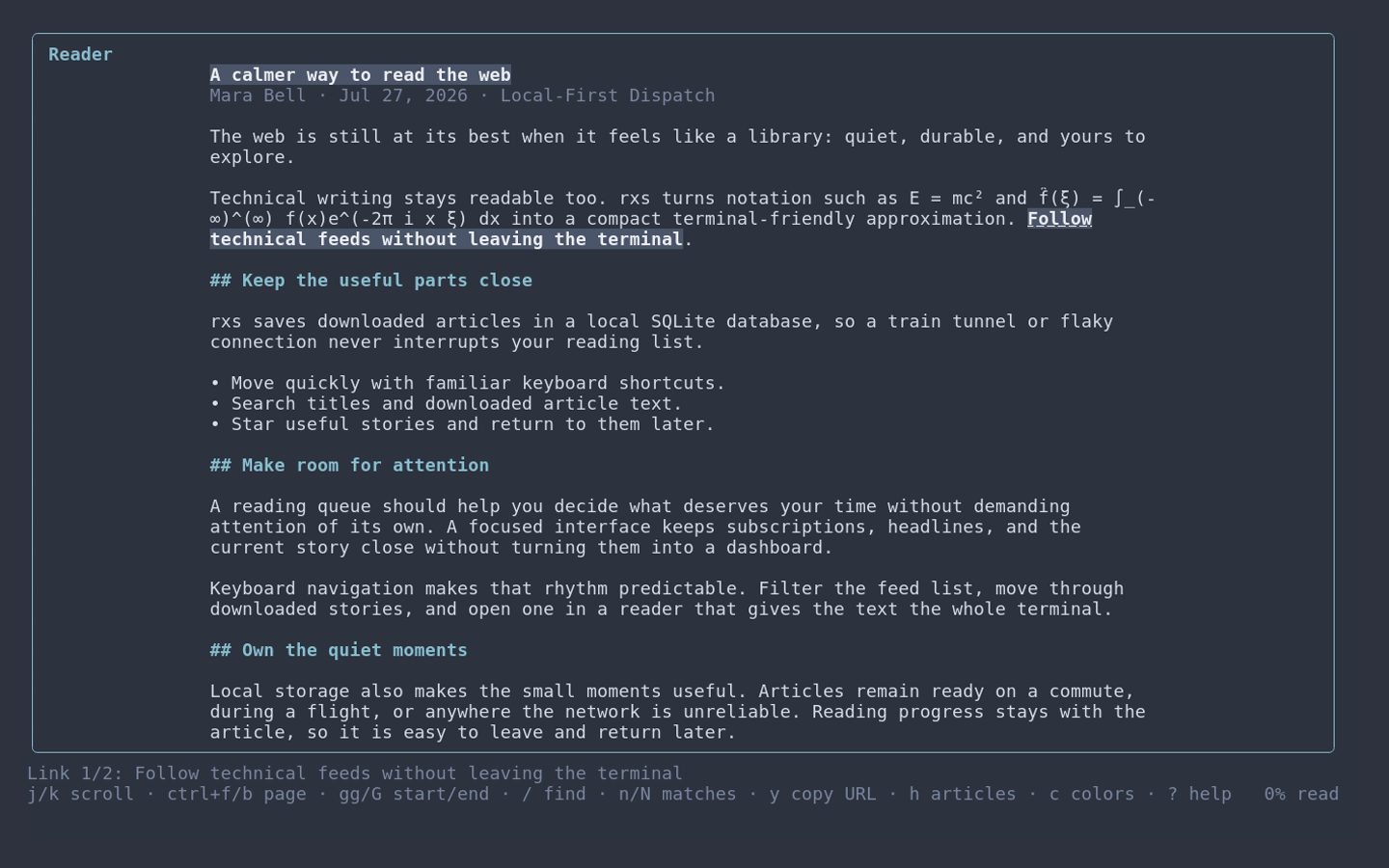
Articles open in a full-width view with a reading-progress indicator. rxs saves your position when you leave or confirm quitting and restores it when you return, even in a different terminal size. An unread article is marked read after you reach its end and return to the article list. Confirmed quits wait for pending read, star, and position updates before closing the database.
Search downloaded titles and article text.
Shows your saved library immediately, then refreshes every feed in the background.
Choose from dark, light, and high-contrast palettes with live preview.
Three panes when wide, one focused view when narrow.
Save articles for later. Read articles are hidden by default and can be shown for the session.
Move every saved subscription into or out of rxs, independent of the active filter.
Common LaTeX notation is converted automatically into terminal-friendly Unicode.
State updates finish on confirmed quit, while exports and configuration changes use staged file replacement.
Getting started
Install the latest release, add a feed directly, then open the reader. Added articles are downloaded to the local database immediately.
$ /bin/sh -c "$(curl -fsSL https://rxs.sh/install.sh)"
$ rxs add https://example.com/feed.xml
$ rxs
The installer supports macOS, Linux, and FreeBSD on AMD64 and ARM64. Precompiled archives are also available from GitHub Releases. You can also press a in the reader and type or paste a feed URL with your terminal's paste shortcut.
At the prompt
rxsrxs add URLrxs upgraderxs -db PATHrxs -config PATHrxs -versionOn launch, the interactive UI displays the saved library first and then refreshes every feed concurrently. Refresh results and per-feed failures appear in the status line without interrupting navigation. It also checks for a new release once a day and lets you install it or defer the prompt for 24 hours.
Inside the reader
Arrow keys, Tab, and Shift-Tab are supported too. Press y to copy the selected article's URL using OSC 52; your terminal must allow clipboard writes. The reader footer shows your progress, and leaving the reader or confirming quit saves that position for your next visit. Temporary status messages clear after ten seconds or when you resume navigation. Press ? in rxs for the complete key map.
Math in feeds
rxs detects common inline and display LaTeX delimiters, plus MathJax math/tex blocks and math fallback text embedded in HTML objects or image descriptions. It converts the notation automatically into a readable linear form using terminal-friendly Unicode.
The renderer supports common fractions, roots, scripts, vectors and accents, blackboard and calligraphic letters, operators, relations, angle brackets, and flattened aligned and cases environments. It is a practical terminal approximation rather than a complete TeX typesetter; unknown commands remain visible instead of being discarded.
Make it yours
No configuration file is required. Create config.json in the platform configuration directory to change reading behavior, choose a color scheme, or use a terminal browser.
{
  "appearance": { "color_scheme": "nord" },
  "reading": {
    "hide_read": false,
    "mark_read_on_scroll": true
  },
  "content": { "full_articles": "auto" },
  "browser": {
    "mode": "tui",
    "command": "w3m",
    "args": ["{url}"]
  }
}
Press c to preview all eleven built-in schemes: Default, Catppuccin Latte and Mocha, Dracula, Gruvbox Dark and Light, High Contrast, Nord, Solarized Dark and Light, and Tokyo Night. Enter saves your choice; Esc restores the previous scheme. By default, read articles are hidden, previews stay unread as you move through the list, and full-article downloads are off. On Linux and FreeBSD, the configuration path is ~/.config/rxs/config.json.
Optional enrichment
Some feeds contain only a summary or truncated article. Set content.full_articles to auto to let rxs fetch the linked page for those entries and store its readable text for offline reading and search.
{
  "content": {
    "full_articles": "auto"
  }
}
Automatic enrichment applies to refreshes in the interactive reader and to rxs add. Enriched entries are labeled full text. Complete feed entries do not trigger an extra request, and a failed download leaves the feed-provided content unchanged.
This feature is off by default. It processes static HTML only: it does not run JavaScript, keep cookies, send URL credentials, or bypass authentication and paywalls. Private, loopback, link-local, and cloud-metadata destinations are rejected, including redirect targets. rxs attempts at most ten enrichments per feed refresh and retries an entry only when its URL, feed content, or update time changes.
What you download
Precompiled archives are available for macOS, Linux, and FreeBSD on AMD64 and ARM64. Every archive includes the rxs binary, its MIT license, and a THIRD_PARTY_LICENSES.txt report with each linked module's reviewed SPDX license expression and complete license and notice files.
Every declared dependency version is reviewed for a permissive license compatible with distributing rxs under MIT, and automated checks keep that policy synchronized with the dependency manifest. Because linked modules vary by operating system, the report is generated from each platform's binary.
rxs is open source, runs locally, and does not require an account.